

WaveKat Voice — the SIP softphone for Mac and Linux that records and transcribes every call — can now do the three things a front desk does all day: put a caller on hold, answer a second call while the first one waits, and transfer a caller to someone else, either straight away or after checking with them first. It lands in 0.0.42.
This is the most literal step yet toward giving every small business the voice of a big one. When you call a big company, someone says “one moment, let me put you through” — and it works, because there’s a receptionist with a switchboard. Now WaveKat Voice, which already records and transcribes every call, gives a one-person shop the same moves. Hold, call waiting, and transfer are the controls a desk worker reaches for constantly, and any serious softphone is expected to have them — WaveKat Voice now does, with its own twist: what happens on hold stays out of the recording. Controls like these live deep in the phone signaling itself, which is part of why WaveKat Voice now runs on its own from-scratch SIP engine.
Put a caller on hold
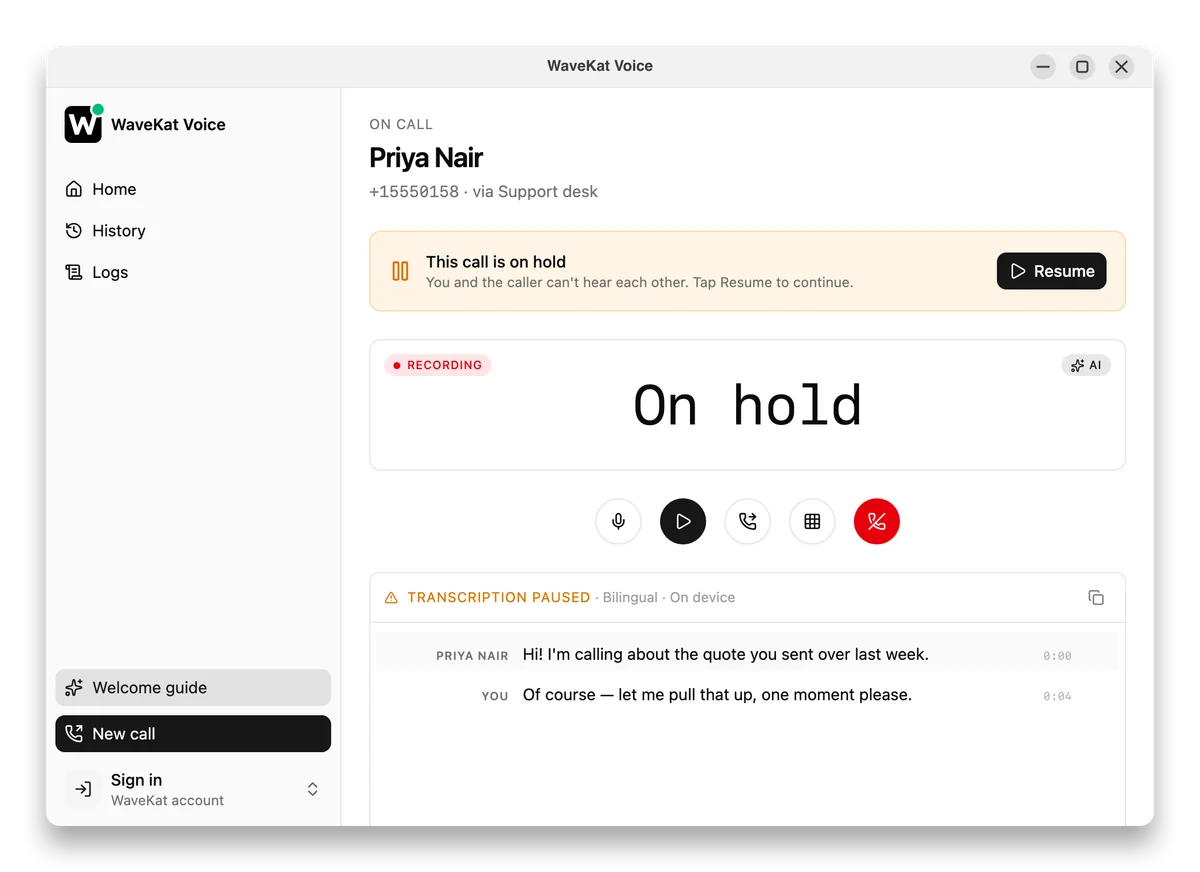
Putting a caller on hold in WaveKat Voice pauses the recording and the live transcript for as long as the call is parked — nothing said near your desk during a hold ends up in the recording or the transcript. There’s a Hold button on the call screen, between Mute and the keypad; press it and the call pauses in both directions, so you can’t hear the caller and they can’t hear you.
WaveKat Voice signals the hold to the other side’s phone system the standard SIP way, so most systems play their own hold music to the caller — they hear “you’re on hold”, not dead air. That’s more than a local mute: the remote system knows the call is parked, not just quiet. Press Resume and the conversation, the recording, and the transcript pick back up.
Call waiting: answer a second call while you’re on one
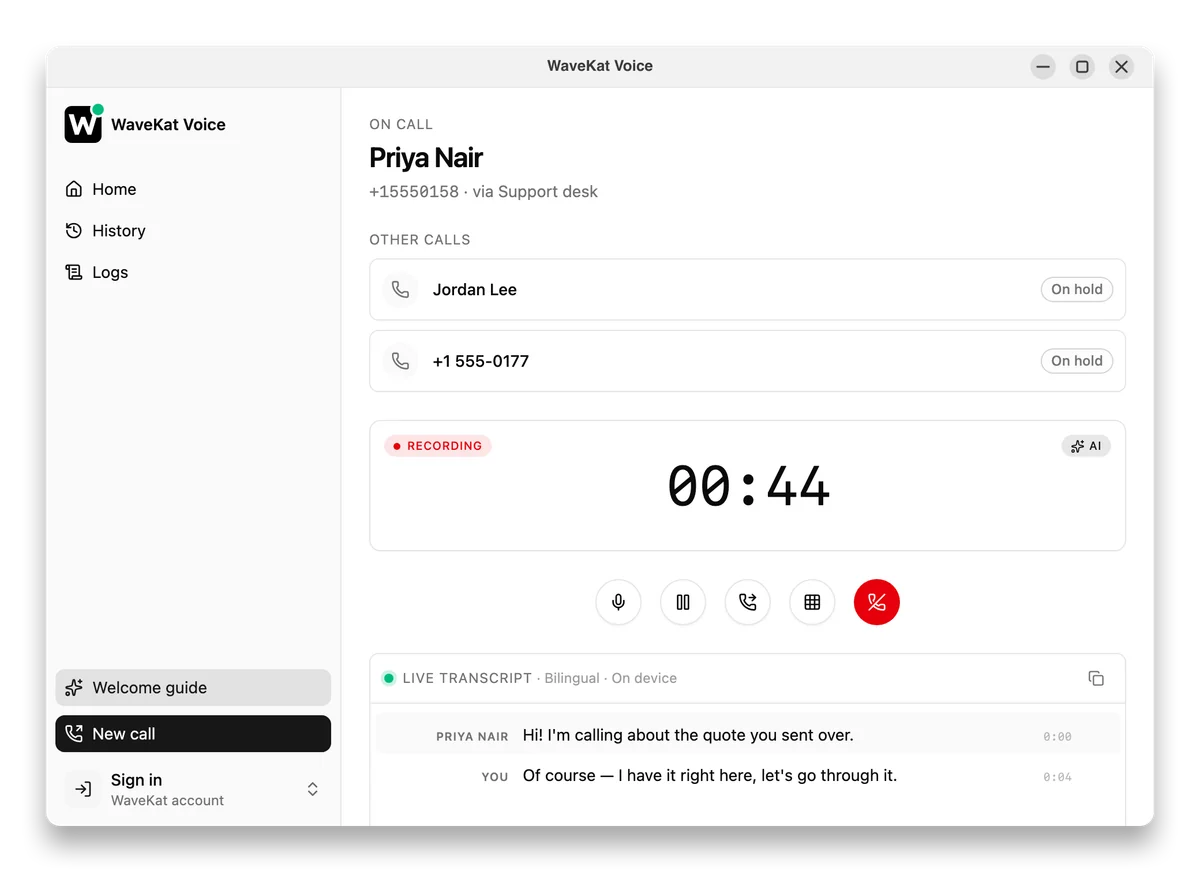
When a second call rings while you’re already talking, you no longer have to choose between them. Answer it, and the first call goes on hold by itself — exactly like call waiting on a mobile phone. A switcher bar on the call screen lists every call in progress, and you move between them with a click.
Only one call is live at a time. The call you’re looking at is the one you’re talking on; every other call is on hold, with its recording and live transcript paused until you switch back to it. By default, switching to a held call resumes it immediately; if you’d rather resume each call deliberately, there’s a toggle in Settings → General (“Resume a call when you switch to it”), and a clear banner on any held call so a silent line never reads as a dropped one.
Transfer a caller — straight away, or after checking
The Transfer button sends a live caller to someone else — another number, another extension, another SIP address. There are two ways to do it, and WaveKat Voice has both:
| Blind transfer | Attended transfer | |
|---|---|---|
| What happens | The caller is sent to the new number immediately | You call the new person first, talk to them, then connect the two |
| Do you talk to the recipient first? | No | Yes — the caller waits on hold while you check |
| If the recipient doesn’t pick up | The caller stays with you; nothing is lost | You hang up the consult call and go back to the caller |
| When to use it | You know they should take it: “putting you through to billing” | You want to announce the caller, or aren’t sure they’re available |
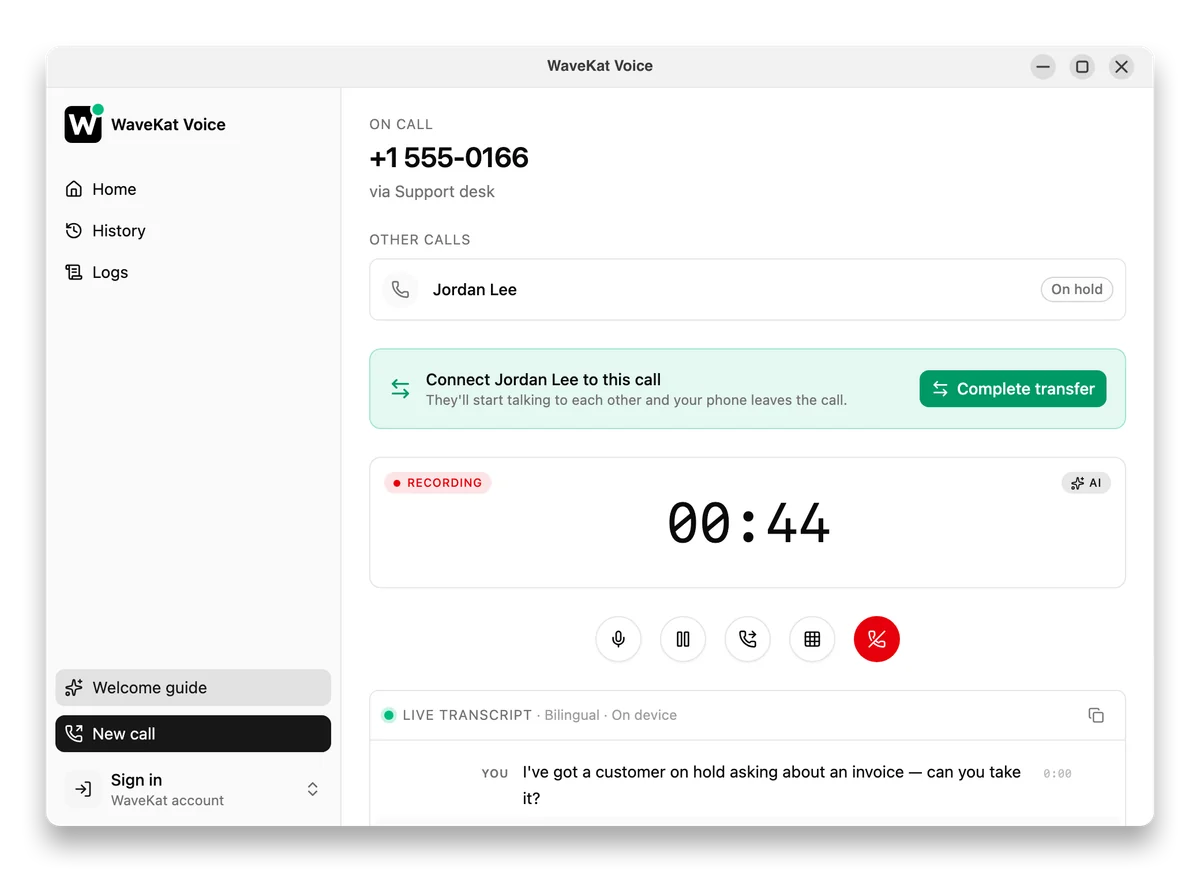
For a blind transfer, press Transfer, enter the destination, and you’re done — once the new person answers, your side of the call ends. For an attended transfer, choose Talk first: the caller goes on hold, WaveKat Voice dials the destination as a second call, and you talk to them privately (“I’ve got a customer asking about the invoice — can you take it?”). When they’re ready, press Complete transfer and the two are connected while you drop out. If they’re busy, decline, or turn out to be the wrong person, just hang up the consult call and resume your caller — they never know the first attempt didn’t work out.
Transfers are recorded honestly in your history, too. A transferred call ends as Transferred, and the call’s detail page shows exactly where it went — “Transferred to …” — instead of pretending you hung up.
Frequently asked questions
How do I transfer a call in WaveKat Voice?
Press Transfer on the call screen and enter a number, extension, or SIP address. Sending it right away is a blind transfer; choosing Talk first holds the caller and dials the destination so you can announce them, then Complete transfer connects the two.
What is the difference between a blind and an attended transfer?
A blind transfer sends the caller to the new destination immediately, without talking to the recipient first. An attended transfer holds the caller while you call the recipient yourself, and only connects the two once you confirm — so you can back out if the recipient is busy or declines. WaveKat Voice supports both.
Does the person I transfer a call to need WaveKat Voice?
No. WaveKat Voice uses the standard SIP transfer mechanism (a REFER, RFC 3515), so the destination just receives an ordinary phone call — any phone, any softphone, any extension your provider can reach.
Does hold and transfer work with any SIP provider?
Yes. Hold uses the standard SIP re-INVITE (RFC 3264) and transfer uses SIP REFER (RFC 3515), so both work with any SIP-compliant provider or PBX, using the account you already have — no provider-specific setup.
Can I merge two calls into a conference call?
Not yet. WaveKat Voice can hold two or more calls at once and switch between them, but only one is live at a time. Three-way calling is a separate feature we haven’t built.
What does a caller hear while on hold?
A caller placed on hold in WaveKat Voice hears whatever their own phone system plays for hold — usually its hold music, not silence or a tone from WaveKat Voice. WaveKat Voice signals the hold the standard SIP way (a re-INVITE, RFC 3264), which hands the hold experience to the caller’s own system, so they hear what they’d expect.
Is a call recorded while it’s on hold?
No. The recording and the live transcript pause for the duration of the hold, on both sides, and resume with the call. The saved recording’s timeline stays accurate — held time appears as silence, not as a cut.
Which platforms support hold, call waiting, and transfer?
WaveKat Voice runs on Mac and Linux today, with Windows coming when there’s demand. Hold, call waiting, and both kinds of transfer work on both supported platforms, with the SIP account you already use — no extra cost, no setup.
Try it
Download WaveKat Voice — or update to 0.0.42 — and the controls are on every call screen: Hold next to Mute, Transfer beside it, and call waiting that just happens when the second call rings. Nothing to configure, nothing extra to pay for.
Put a caller on hold, take the second line, and put someone through like there’s a front desk — because now there is.